A lookup that returns nothing for a customer you can see in the list. A pivot table with "Singapore" and "singapore" as two different countries. A sales report where one client appears three times because it was typed three ways. These are not formula problems. They are data problems, and they are almost always the same handful of problems.
This guide covers the eight fixes that clean most CSV and Excel files, with the formula for each, a worked before-and-after, and the one rule that keeps clean-up from creating new mistakes. The free Data Sanitizer finds and fixes these for you, and shows every change for approval first.
Key takeaways
- Never clean the only copy. Keep the original file, and review changes before they are applied.
- Hidden spaces break more lookups than anything else. TRIM them, including the non-breaking kind.
- Store dates as YYYY-MM-DD. Decide day-first or month-first per column, and leave genuinely ambiguous dates for a person to check.
- Standardise names, countries and company suffixes before you look for duplicates, or the duplicates will not match.
- Placeholders like "N/A", "-" and "TBC" are not values. Turn them into real blanks or flag them.
The rule that comes first: review, then apply
Every clean-up rule is right most of the time and wrong occasionally. Proper case turns "anna lee" into "Anna Lee", and also turns "IBM" into "Ibm". A date rule reads 03/04/2026 correctly for half the world. So work on a copy, look at the changes before accepting them, and keep anything you are unsure of as it was. A clean-up that silently changes a few hundred values you did not look at is how a data problem becomes a trust problem.
1. Hidden spaces
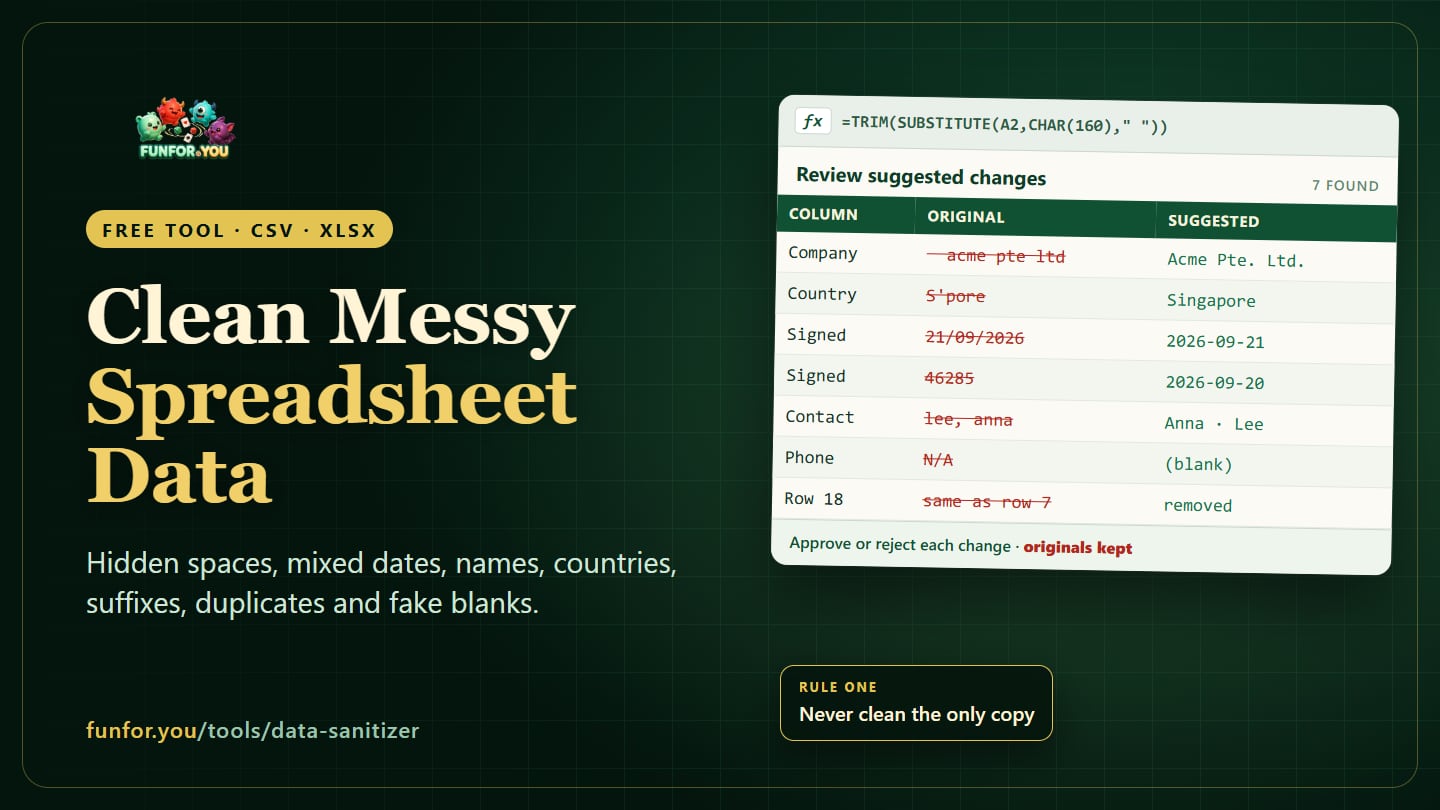
Leading, trailing and doubled spaces are invisible and deadly: "Acme " does not equal "Acme". =TRIM(A2) removes leading and trailing spaces and collapses doubles. Data pasted from websites often contains non-breaking spaces, which TRIM ignores; clear them first with =TRIM(SUBSTITUTE(A2,CHAR(160)," ")). To find cells with hidden spaces, compare =LEN(A2) with =LEN(TRIM(A2)).
2. Dates in five different formats
Date columns collect every format people use: 21/09/2026, 2026-09-21, 21 Sep 2026, a spreadsheet date number like 46286, sometimes a time of day. The worst case is a date like 03/04/2026, which is 3 April to most of the world and 4 March in the United States.
- Decide the order per column. If any date in a column has a first number above 12, such as 21/09/2026, that column is day-first. If a column only ever contains values like 03/04, you cannot tell from the data, and a person has to decide.
- Convert to YYYY-MM-DD. It cannot be misread, and it sorts correctly even as text. For a real date value,
=TEXT(A2,"yyyy-mm-dd")does it. - Drop times you do not need. "2026-09-21 14:30" will not match "2026-09-21" in a lookup.
- Leave the impossible for review. "31/02/2026" or "next Tuesday" should be flagged, not guessed.
3. Inconsistent capitals
=PROPER(A2) gives names a capital letter per word, and =UPPER() suits codes. Both need a quick look afterwards: PROPER writes "Mcdonald" and "Ibm", and some surnames and brands are deliberately lower-case. Standardise capitals in names and categories; leave email addresses lower-case.
4. Names in one column
A single "Full name" column is hard to sort and impossible to personalise. Splitting it needs one decision you should make per file: is the given name first (Anna Lee) or the family name first (Lee Anna), as is usual for many Chinese, Korean, Japanese and Hungarian names? A comma usually means "Last, First". Names with more than two parts, such as "Maria de la Cruz" or "Tan Wei Ming", should be checked by a person rather than split by rule.
5. Countries spelt five ways
"Singapore", "SG", "S'pore" and "Republic of Singapore" are one country to a person and four to a pivot table. Map every variant to one standard name. A short list of the variants that actually appear in your file is usually enough; it is the same dozen countries, spelt a dozen ways.
6. Company suffixes
"Acme Pte Ltd", "ACME PTE. LTD." and "Acme Private Limited" are the same company. Standardise the suffix, for example to "Pte. Ltd.", "Sdn. Bhd.", "Pty. Ltd." or "Co., Ltd.", before looking for duplicates, or they will never match each other.
7. Duplicate rows
Exact duplicates, rows where every column is identical, can go: Excel's Data > Remove Duplicates does it, on a copy. Near-duplicates are different: the same email with different capitals, or the same company before and after its suffix was standardised. That is why duplicates come last: fix spaces, capitals and suffixes first, and many near-duplicates become exact ones.
8. Blanks that are not blank
"N/A", "-", "none", "TBC", "0" and "?" all mean "we do not know", but a formula treats them as values. A count of phone numbers includes every "N/A"; an average includes every placeholder 0. Turn placeholders into real empty cells, or flag them, so blanks are counted as blanks.
A worked before and after
| Column | Before | After | Rule |
|---|---|---|---|
| Company | " acme pte ltd" | Acme Pte. Ltd. | Spaces, capitals, suffix |
| Country | S'pore | Singapore | Country name |
| Signed | 21/09/2026 | 2026-09-21 | Date, day first |
| Signed | 46285 | 2026-09-20 | Spreadsheet date number |
| Contact | lee, anna | First: Anna, Last: Lee | Split "Last, First" |
| Phone | N/A | (blank) | Placeholder, not a value |
| Row 18 | Same as row 7 | Removed | Duplicate row |
A clean-up order that works
- Copy the file, and keep the original untouched.
- Trim spaces everywhere.
- Fix dates, one column at a time.
- Standardise capitals, countries and company suffixes.
- Split names, if you need separate columns.
- Turn placeholders into blanks.
- Only now, remove duplicates.
- Spot-check twenty rows against the original.
Do it in the free Data Sanitizer
The Data Sanitizer runs these fixes on a CSV or Excel file, or on a table you paste in:
- It works out what each column holds, such as dates, countries, companies, person names or emails, and suggests changes: trim whitespace, dates to YYYY-MM-DD, casing, country names, company suffixes, split full names, duplicate rows and blank fields.
- You choose the date order (worked out per column, day first, or month first) and the name order (given name first or family name first). Dates it cannot be sure of go to review instead of being guessed.
- Every suggestion is listed with its row, column, the original value, the suggested value, which you can edit, and the rule behind it. You approve or reject each one, or a whole rule at once.
- Anything not approved keeps its original value. Download the cleaned data as CSV or XLSX, with a recap of what changed.
Everything runs in your browser; the file is never uploaded. Clean data is what makes the other tools work: a tidy client list makes the Aged Receivables & Invoice Chaser and the Sales Pipeline far easier to keep up to date.
Frequently asked questions
Why does VLOOKUP fail when the values look the same?
Usually because of a hidden space, a non-breaking space, or a number stored as text in one column and as a number in the other. Compare the LEN of both cells and check whether one is left-aligned text.
What is the best date format for a spreadsheet?
YYYY-MM-DD, such as 2026-09-21. It is the international standard, it cannot be read two ways, and it sorts in date order.
How do I find hidden spaces?
In a spare column, use =LEN(A2)-LEN(TRIM(A2)). Anything above zero has spaces TRIM would remove. For non-breaking spaces, search for CHAR(160).
Should I remove duplicates automatically?
Exact duplicate rows are safe to remove from a copy. Near-duplicates need a person: two customers can share a name, and one customer can have two addresses.
Can I clean a file with customer details in it?
The Data Sanitizer processes the file in your own browser and does not upload it. Follow your organisation's own rules for handling personal data, as you would for any spreadsheet.