
Spreadsheets travel. A customer list goes to a marketing agency, a sales report goes to a consultant, a claims file goes to a colleague in another team. Each copy usually carries far more personal data than the task needs: full names, phone numbers, identity numbers, addresses, notes someone typed years ago. Every extra column is a risk if the file is forwarded, misplaced or breached.
This guide explains what to remove, how to mask what must stay, where data hides in a spreadsheet, and how to clean the file first with a free in-browser Data Cleaner.
Key takeaways
- Start from the task: share only the columns the recipient actually needs.
- Remove direct identifiers such as names, identity numbers, phone numbers and emails, or replace them with codes.
- Watch for indirect identifiers: a postcode, a birth date and a job title together can identify a person.
- Check hidden places: hidden sheets and columns, comments, file properties and pivot caches.
- Keep the key that links codes back to people separately, and do not send it.
What counts as personal data
Under data protection laws such as Singapore's PDPA, personal data is data about an individual who can be identified from that data, or from that data together with other information the organisation has or is likely to have access to. In a spreadsheet, that usually means two kinds of column:
- Direct identifiers: full name, identity or passport number, phone number, email address, home address, account or policy number.
- Indirect identifiers: date of birth, postcode, job title, employer, rare attributes. Individually harmless, together often enough to single someone out.
Step 1: Delete what the task does not need
Ask what the recipient will do with the file, then delete every column that does not serve that purpose. An agency analysing purchase patterns needs dates, amounts and product categories. It does not need names or phone numbers. Deleting is always safer than masking.
Step 2: Replace identifiers you must keep with codes
If the recipient needs to tell customers apart, replace each name or number with a code such as C0001, C0002. Keep the table that links codes to real people in a separate, secured file that does not travel.
Step 3: Generalise indirect identifiers
- Replace a full date of birth with an age band: 30–39.
- Replace a full postcode with a region or district.
- Replace an exact salary with a range.
- Group rare values into "Other" when only one or two people share them.
Step 4: Clean the data so nothing slips through
Messy data defeats anonymisation. A name typed as "Tan, J." in one row and "J Tan " in another will not be caught by a find-and-replace, and duplicates can reveal that the same person appears several times. Standardise names, casing, dates and whitespace, remove duplicates and flag blanks before you mask anything.
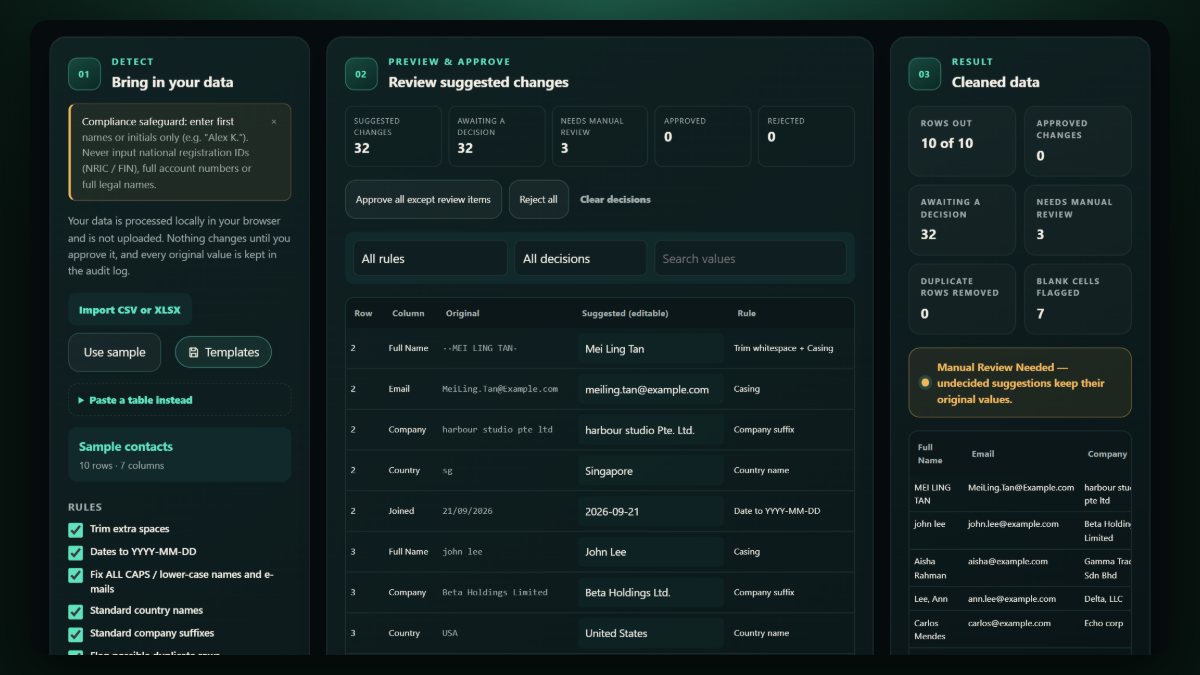
The Data Cleaner does this in your browser for CSV and XLSX files: dates, whitespace, casing, names, duplicates, countries, company suffixes and blanks. It detects each issue, shows a preview, and only changes what you approve. The file is processed on your device rather than uploaded.
Step 5: Check the hidden places
- Hidden sheets, rows and columns: unhide everything and look.
- Comments and notes attached to cells.
- Pivot tables, which can keep a copy of the original data in their cache.
- File properties: author, company and previous titles.
- Formulas and links pointing to other files that contain the original data.
The safest habit is to copy only the values you need into a brand-new file, then check it again.
A checklist before you press send
- Is every column needed for the task?
- Are names, numbers and contact details removed or coded?
- Are dates of birth, postcodes and other indirect identifiers generalised?
- Is the data cleaned, with duplicates handled?
- Have hidden sheets, comments, pivots and file properties been checked?
- Is the linking key stored separately and not attached?
- Is the recipient's email address correct?
Try it free: Load a CSV or XLSX, review each suggested fix, approve the ones you want and download a clean copy. Open the Data Cleaner on CREATEFOR.YOU. It runs in your browser, needs no sign-up to build and preview, and the entries you type are not sent to the server.
Frequently asked questions
Is replacing names with codes enough to anonymise data?
Not always. If the remaining columns can still identify someone, for example a rare job title in a small team, the data is only pseudonymised. Generalise or remove indirect identifiers too.
Can I just hide the sensitive columns?
No. Hidden columns travel with the file and anyone can unhide them. Delete them, or copy only the needed values into a new file.
Does cleaning the data upload it anywhere?
With the CREATEFOR.YOU Data Cleaner, the file is processed in your browser. See privacy and security for details.
Related reading
- How to clean messy spreadsheet data
- 10 free Excel templates for small business owners
- Client meeting recaps: what to leave out
General information only, not legal advice. Your obligations depend on your organisation and the laws that apply to it.